How do I use Slooply Bridge?
First, make sure you’ve installed Slooply Bridge via the Slooply desktop application. (Click here for instructions on how to install Bridge.)
After installing the plugin, the next step is to connect the Slooply App to your DAW. You can read how to do that in this article.
After completing these steps, you’re ready to start using the plugin. The plugin lets you sync sample playback in the app with your DAW project.
To hear samples from the app, simply press Play in your DAW. The sample will automatically sync to your DAW’s tempo. You can also match the key of samples in the app to the key of your DAW project.
In the sample player, you can change the key at any time. Select a key, and the sample will be transposed in real time. If you want to keep one key fixed while browsing samples, click the lock icon next to the key selector. Every sample you play will then be automatically adjusted to the locked key.
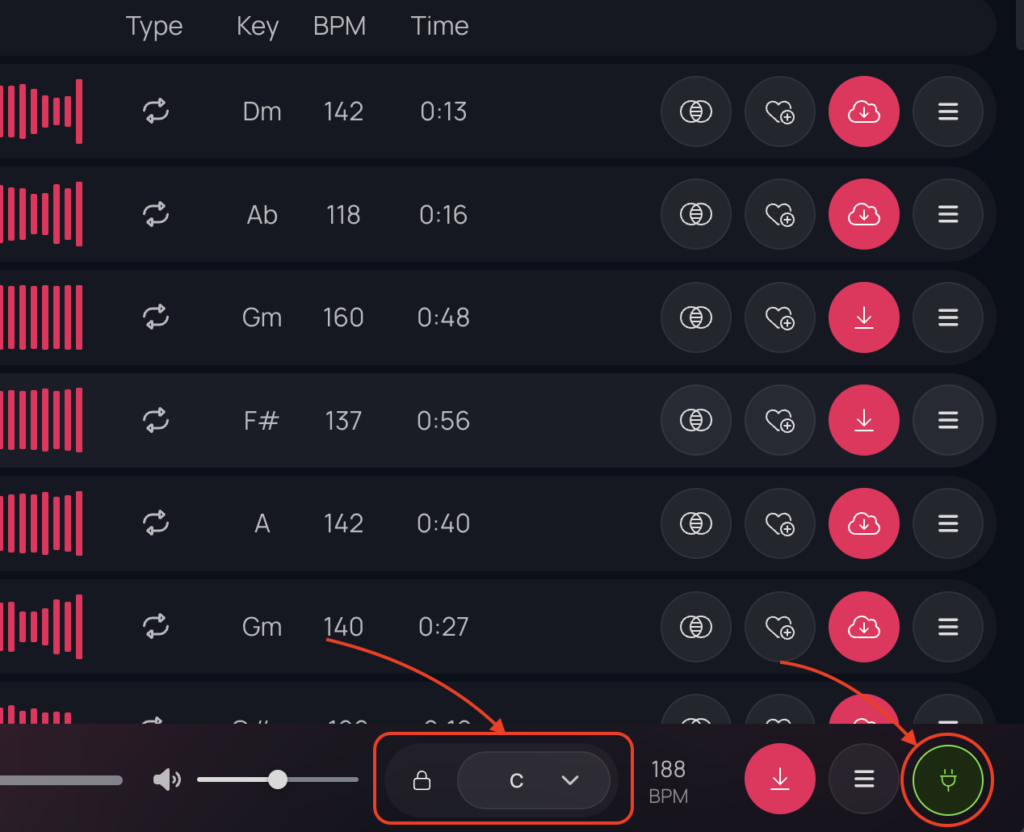
When you find a sample that fits your project and want to download it in its modified version (synced tempo and selected key), click the pink button in the player. The sample will be automatically processed to match your project.
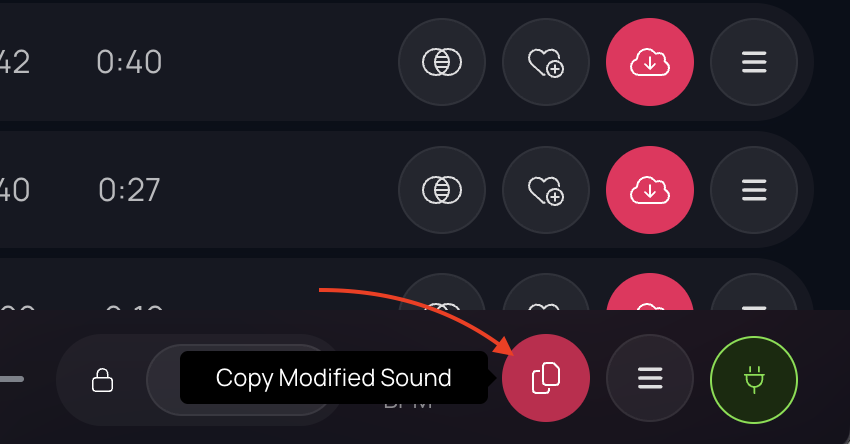
After the download and processing are complete, click the same button again to copy the sample, so you can paste it directly into your DAW.