How do I download sounds, midi & presets in the desktop app?
How to download single sounds, MIDI files, and presets
If you find a sound that fits your project perfectly, simply click the pink download arrow to save it. The file will be added to your personal sound library.
Once it’s added, you can drag it directly into your DAW, or click the pink button again to quickly copy it and paste it into your project.
All downloaded files can be found anytime in the “Your Library” section on the left side of the app.
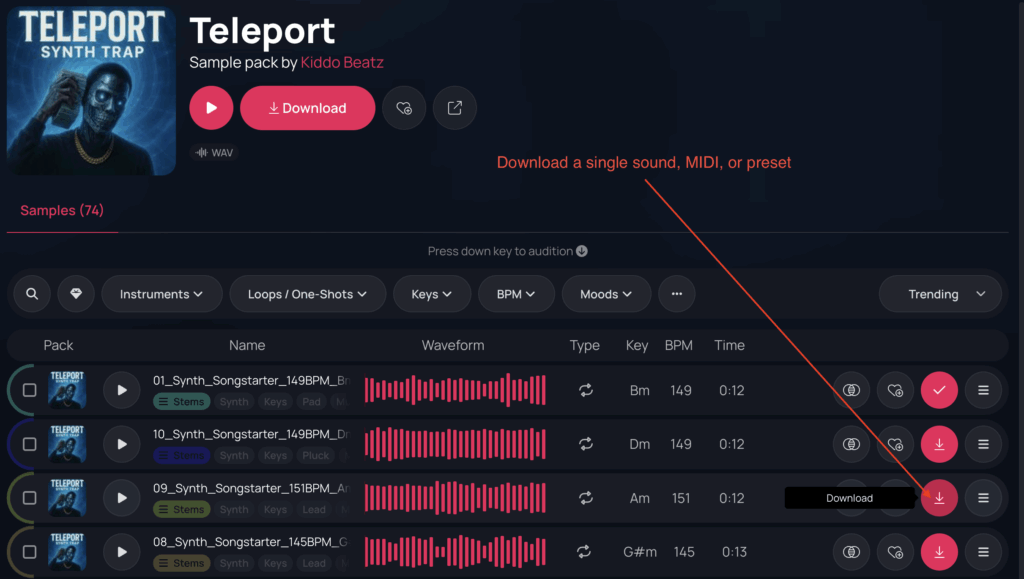
The video below shows exactly how to download a single sound and drag it directly into your music production software.
How to download an entire sample pack
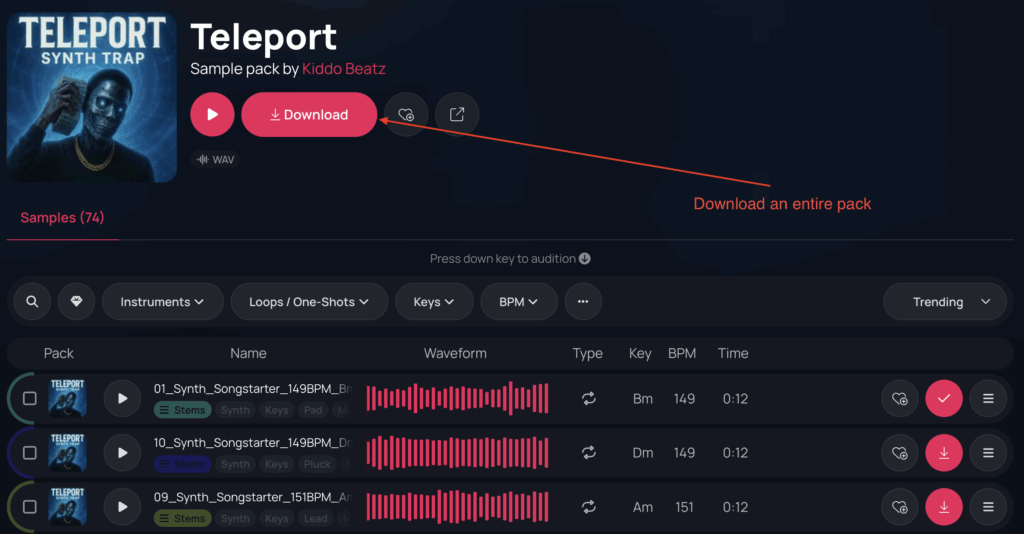
If you want to download an entire sample pack, go to the product page and click the pink “Download” button located next to the play button and the cover artwork.
A pop-up will appear showing all available download options – this may include all samples, all MIDI files, or all presets, depending on the product.
After selecting an option, the files will begin syncing. Once synced, you can drag the files directly into your DAW from the product’s file list, or access them anytime from “Your Library” in the sidebar.
Downloading Multiple Files at Once
If you want to download several files from different products at the same time, simply select each file you want to add to your library by clicking the checkbox located to the left of the cover image in the sound list. Once you’ve selected your files, click the pink download button on the right-hand side.
The video below shows exactly how this process works.
Where your files are stored on your computer
All files you download through the app are saved directly to your computer.
By default, the locations are:
Mac: Macintosh HD/Users/[user_name]/Slooply
Windows: C:\Documents\Slooply
You can view these files or change the download location anytime.
To do this, open Settings (top-right corner – the user icon) and scroll down to the Slooply Sounds Preferences section.