How do I install Slooply Bridge?
- Once you have begun a Slooply subscription, please download the Slooply Desktop App here: https://slooply.com/desktop-app
- Please make sure to sign into the app with the account with an active Slooply subscription.
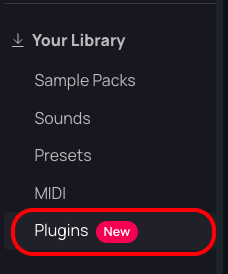
- From there, please head to the “Plugins” section on the lefthand side under ‘Your Library’
- Under the Your Plugins section, you will see the Slooply Bridge. Please click “Install“
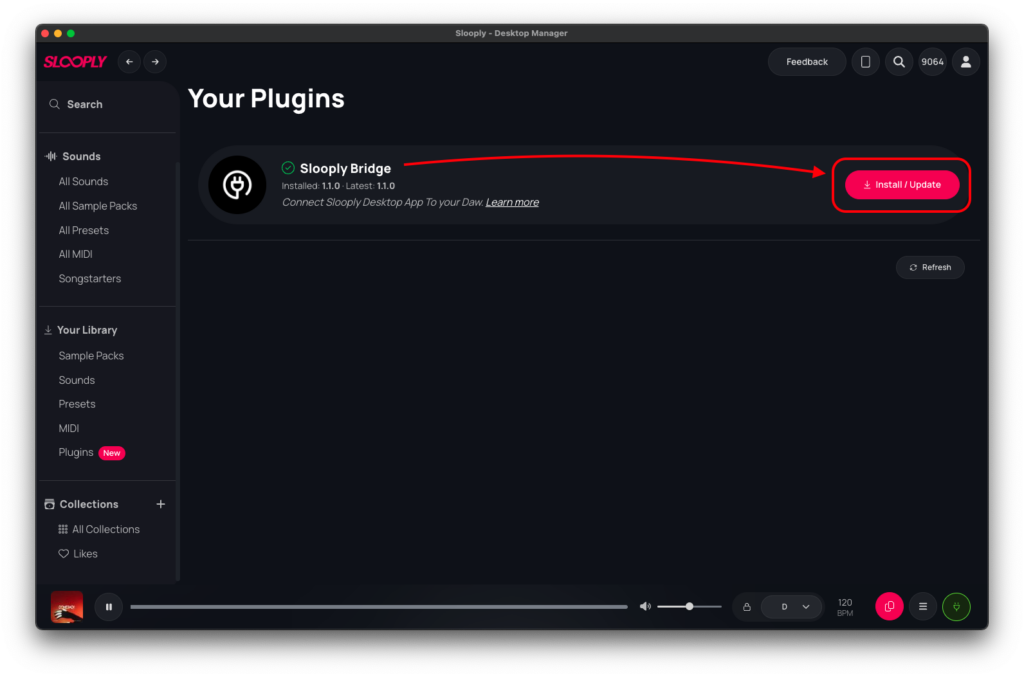
- Please follow your computer’s installation prompts.
- Once installation is complete, please either restart your DAW, or rescan for third-party plugins.
- Please make sure the Slooply Desktop App is open to authorize Bridge before opening your DAW.
- In order to make sure Bridge appears in your DAW, please refer to the following DAW-specific installation instructions below:
- You can update or reinstall Bridge via the “Plugins” section of the Desktop App.
- On Mac, Bridge will install to these locations automatically:
AU: Macintosh HD/Library/Audio/Plug-Ins/Components/Slooply_Bridge.component
VST3: Macintosh HD/Library/Audio/Plug-Ins/VST3/Slooply_Bridge.vst3
On Windows, Bridge will install to this location:
C:\Program Files\Common Files\VST3