How to Connect Slooply Desktop App with Your DAW (Using Slooply Bridge)
First, make sure you’ve installed Slooply Bridge via the Slooply desktop application. (Click here for instructions on how to install Bridge.)
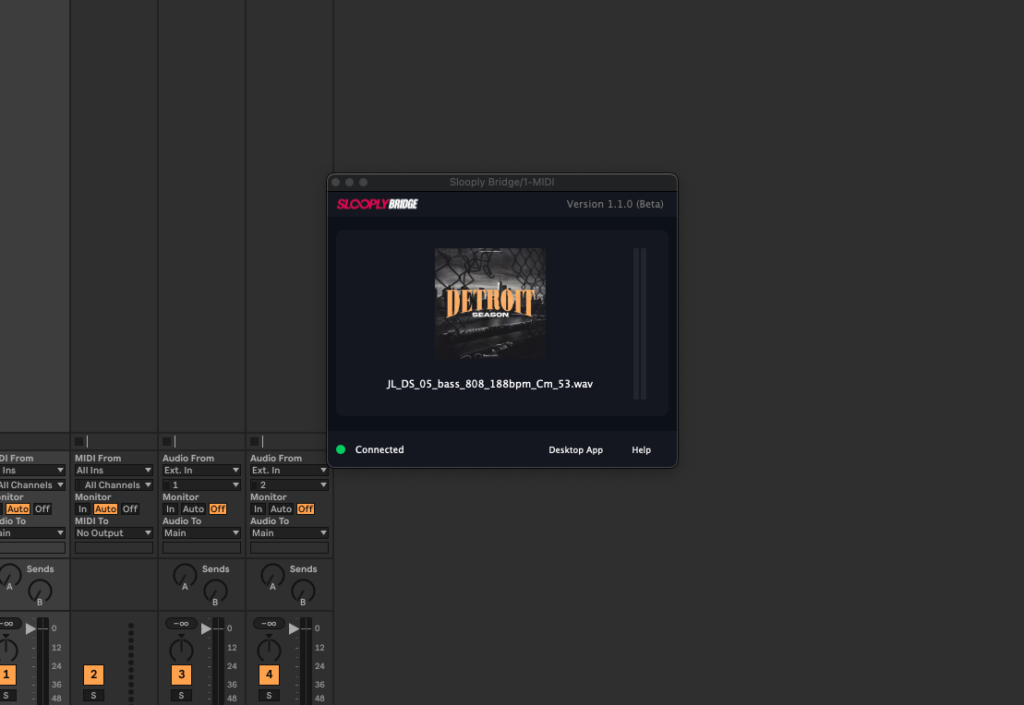
To use Bridge in your DAW, start by adding it as a plugin to a MIDI track in your project. If you launch Bridge in your DAW, click the plugin icon in the desktop app to connect the app with your DAW. When the icon turns green, it means the app is successfully connected to your DAW.
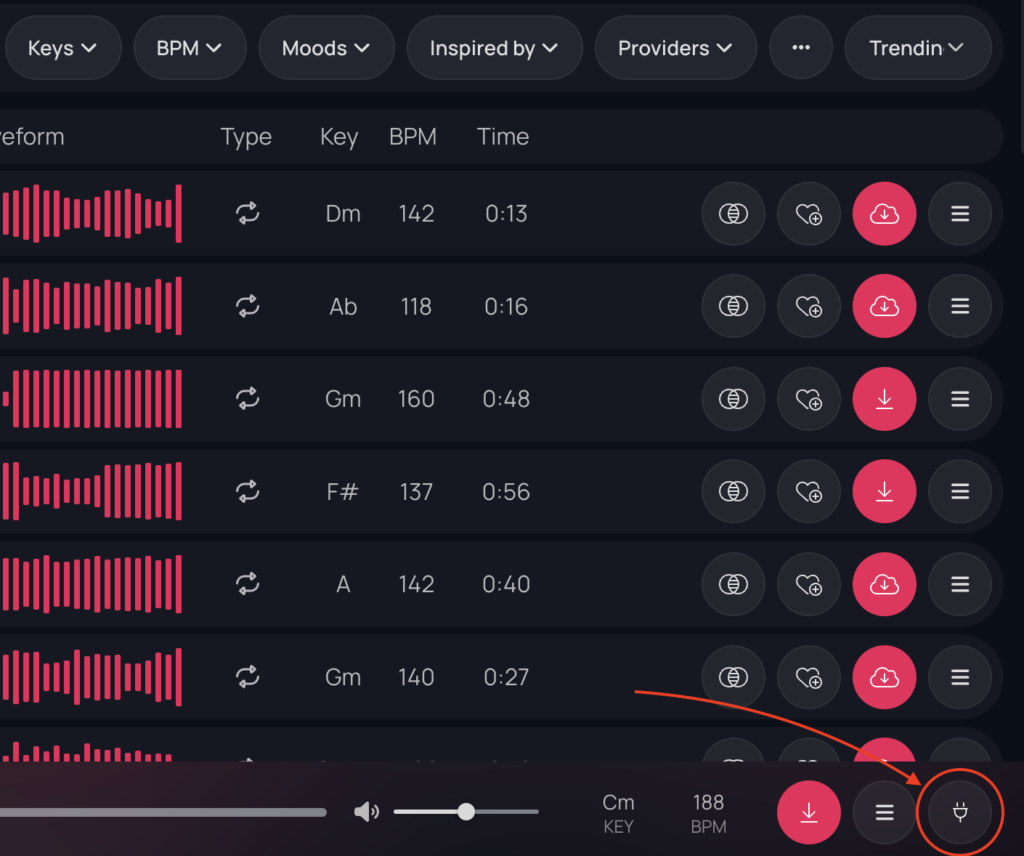
Once the connection is successful, the plugin icon in the bottom-right corner will turn green, and a key (pitch) control will appear to the left of the icon.
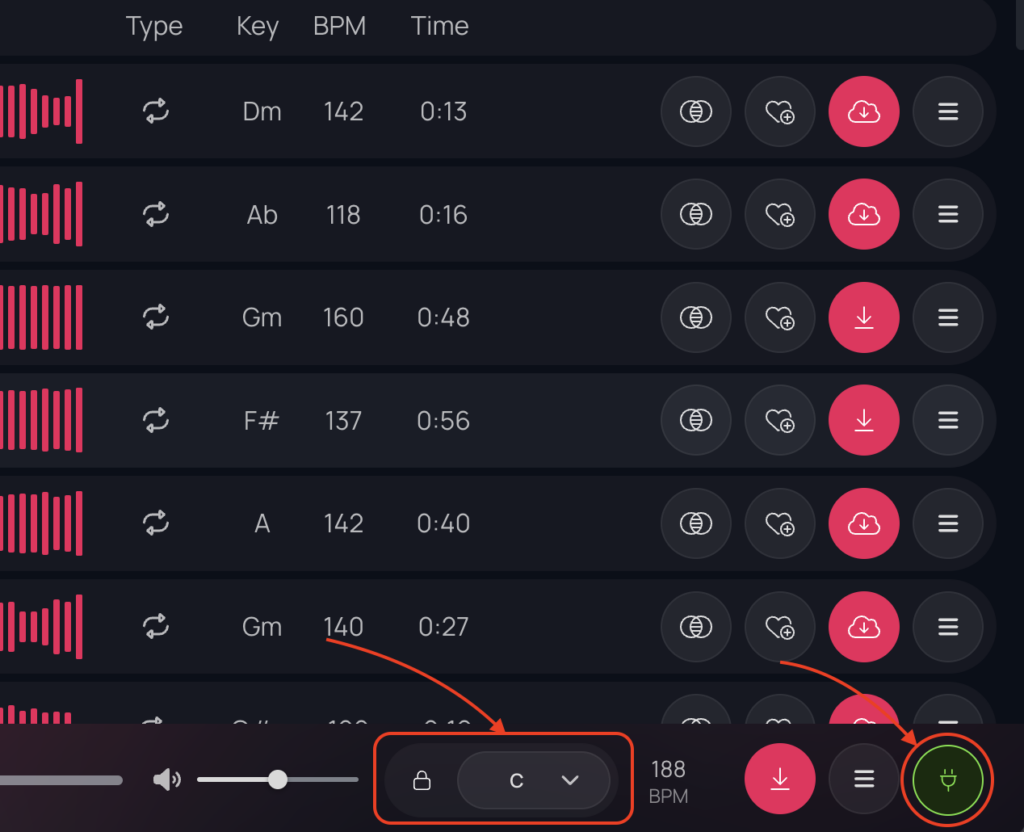
From there, in the Slooply desktop app, you can start previewing samples, and they’ll automatically match up with the tempo of your project. If your DAW is playing/recording while you preview samples in the app, the sample previews will match up to the metronome in real-time.
When browsing samples in the app, the plug-in will display the currently playing sample.